
Standard Keyboards: Layout, Comfortable Typing, and Everyday Use
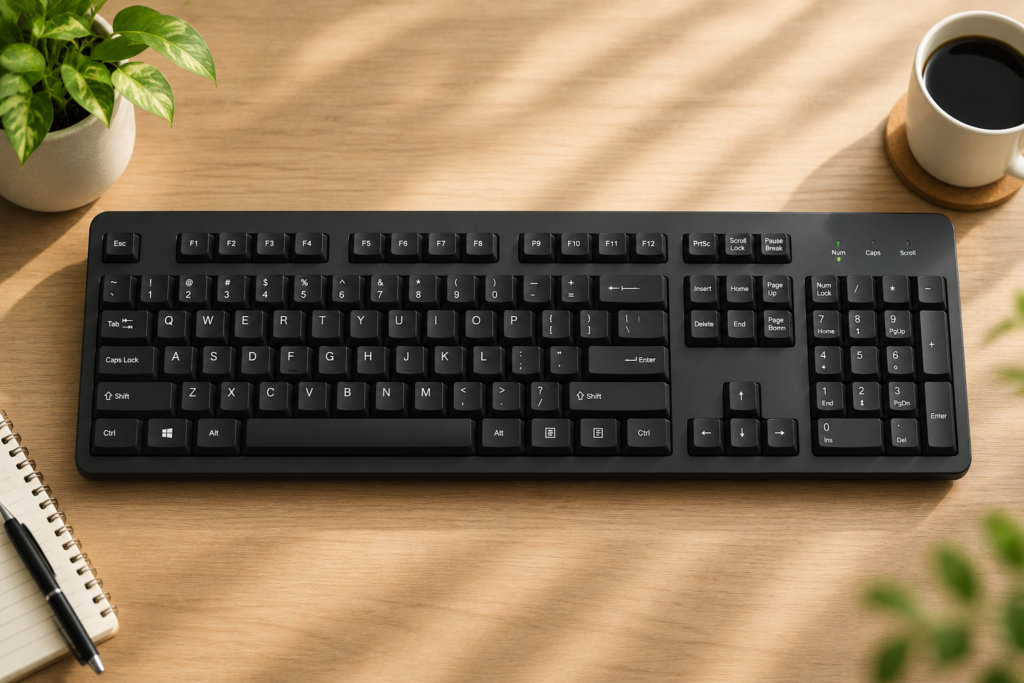
Standard keyboards serve as the universal input baseline for modern computing, providing a 104-key layout that maximizes data entry efficiency through dedicated physical zones.
For the modern professional, the Standard Keyboard presents a strict “Comfort Paradox.” It offers the highest volume of immediate input access, effectively removing the cognitive learning curve required by smaller models. However, this expansive physical footprint frequently forces the mouse arm into a state of strained external rotation, heavily taxing the upper musculoskeletal system.
To determine are standard keyboards good for office work, you must evaluate your output mechanics. This guide defines the anatomy of the 100% form factor, provides a diagnostic matrix for selecting the optimal switch profile for comfort, and outlines the precise desk setup protocols required to prevent shoulder fatigue on wide boards.
Key Takeaways: Standard Design Principles
What Is a Standard Keyboard and Why Is Its Full-Size Layout the Baseline?
A standard keyboard, commonly referred to as a 100% or Full-Size layout, is an input device featuring 104 to 105 physical keys arranged strictly in specialized functional clusters.
Figure 1.0: Physical Zone Architecture. The 104-key layout avoids complex software mapping by dedicating vast hardware space to four strictly defined interaction zones.
The Anatomy and Evolution of the 100% Form Factor
The foundational architecture of the modern 100% layout was structurally established in 1985 with the release of the legendary IBM Model M, which defined both the 101-key ANSI and 102-key ISO standards. Even as ergonomic interventions like the Microsoft Natural (1994) attempted to reshape the chassis, the core 4-zone geometry remained utterly undisputed in corporate environments.
You must buy a standard board if your workflow requires constant numerical entry or high-speed F-key access. Physical key availability completely removes the immense cognitive load of memorizing hidden “Fn” software combinations. By maintaining physical totality, users achieve a zero-learning-curve interface, which enables immediate muscle memory deployment, mathematically maximizing daily data throughput from the moment the device is plugged in.
Regional Layout Specification Matrix
| Specification | ANSI (North America) | ISO (Europe / Global) |
|---|---|---|
| Total Keys | 104 Keys | 105 Keys |
| Enter Key | Horizontal / Wide | Vertical / Inverted-L |
| Left Shift Key | Wide (2.25u) | Split (Short Shift + Extra Key) |
| Right Alt Key | Standard Alt | AltGr (For special characters) |
Which Standard Keyboard Switch Type Maximizes Your Daily Typing Comfort?
Selecting a standard keyboard switch profile requires aggressively balancing your budget against your physiological tolerance for “finger shock” during extended typing sessions.
Figure 2.0: Tactile Actuation Mechanics. Membrane domes force the finger to crash fully into the rigid desk surface to register a keystroke. Mechanical switches register the input halfway down the shaft, creating a physical buffer zone.
The Everyday Comfort Decision Matrix
Standard keyboards are highly accessible because they are manufactured across three dominant, heavily established switch architectures: membrane domes, tactile mechanical switches, and low-profile chiclet systems.
| User Preference | Recommended Type | Actuation Feedback | Productivity Impact |
|---|---|---|---|
| Budget / Shared Office | Membrane Domes | Soft / Mushy | Silent operation; high finger fatigue over time. |
| Heavy Data Entry | Mechanical Switches | Crisp / Spring-loaded | High tactile confidence; prevents bottoming out. |
| Laptop Transition | Low-Profile Chiclet | Short Travel (1.5mm) | Fastest key-to-key gliding; minimal joint shock. |
Deploying a Mechanical Switch provides distinct tactile confirmation directly to the fingertips, completely reducing the aggressive physical force required to register a stroke and verify input on the screen. Clinical electromyography (EMG) testing from IEEE Transactions on Human-Machine Systems reveals that switches requiring a hard bottom-out at high actuation forces (like standard membrane domes) increase flexor muscle fatigue by up to 28% compared to tactile mechanical switches.
Should You Choose a Wired or Wireless Standard Keyboard for Your Desk?
Choosing between a wired or wireless standard keyboard depends on whether you prioritize absolute zero-latency reliability or the aesthetic superiority of a clutter-free desk.
Evaluating Cable Management vs. Battery Dependency
Wireless standard keyboards utilize 2.4GHz RF dongles or Bluetooth 5.0 protocols to completely eliminate cable drag, though they inherently introduce a frustrating secondary maintenance requirement for battery charging.
If your workstation is a Fixed Station (e.g., a corporate desktop tower that never moves), you must prescribe a Wired connection. This guarantees “Infinite Power” and negates the risk of wireless interference in crowded office buildings. However, if you operate at a Shared Desk or utilize a docking station, prescribe Wireless to ensure you possess the ability to rapidly move the large 100% board out of the way to review physical paperwork.
Why Is a Standard Keyboard the Best Choice for Heavy Data Entry Workflows?
Standard keyboards remain the dominant industry baseline for financial, logistical, and data-heavy professions strictly due to the physical inclusion of a dedicated 10-key Numpad.
Unlocking the Dedicated Numpad Advantage
The dedicated Numpad on a standard keyboard functionally enables rapid, one-handed numerical input. Attempting to achieve “blind typing” speeds using the horizontal top-row number strip is a biological impossibility for the human hand.
The 3×3 grid geometry of the Numpad anchors the hand within a tight 50mm radius. This dense clustering allows accountants and analysts to completely bypass “Scanning Time”—the visual delay required to locate a number—facilitating Keystrokes Per Hour (KPH) metrics that frequently exceed 12,000.
How Can You Prevent Shoulder Fatigue When Using a Wide Standard Keyboard?
Preventing shoulder fatigue on a standard keyboard absolutely requires a clinical adjustment to the board’s lateral position on your physical desk.
Figure 3.0: The “Mouse Reach” Flaw. Centering the entire 100% board on your torso forces the right arm into severe external rotation to reach past the Numpad. Shifting the board rightward to center the “H” key restores neutral shoulder alignment.
Overcoming the “Mouse Reach” Ergonomic Flaw
Standard keyboards inherently induce dangerous external shoulder rotation. Because the 100% footprint contains a massive Numpad and navigation cluster on the right side, it aggressively forces the right mouse arm to move approximately 6 to 8 inches away from the body’s natural midline. According to a CDC/NIOSH laboratory study on upper extremity postures , due to anatomical shoulder width, women operating a mouse to the right of a standard keyboard exhibit a 50th percentile shoulder external rotation of 55 degrees, vastly exceeding the 24 degrees exhibited by men.
The Fix: You must aggressively shift the keyboard to the right, purposefully centering the ‘H’ key exactly to your belly button to align the typing zone with your body. Fold the rear kickstands entirely flat. Research from the Cornell University Human Factors and Ergonomics Laboratory firmly establishes that deploying rear kickstands (a positive tilt) severely increases carpal tunnel pressure. A flat (0-degree) or negatively tilted board is medically required to keep intracarpal pressure safely below the 30 mmHg danger threshold. Finally, deploy the “Hover Protocol”—refuse to lazily anchor your wrists to the hard desk edge while actively typing.
[Checklist] Is Your Standard Keyboard Setup Optimized for Daily Use?
Run your full-size workstation through this diagnostic checklist to ensure your hardware is not the biological source of your chronic neck or shoulder pain.
Frequently Asked Questions (FAQ) About Standard Keyboards
Review these common diagnostic queries to understand the biomechanical trade-offs of deploying a 100% layout in your daily workflow.
Are standard keyboards good for competitive gaming?
No. The massive 440mm physical footprint actively forces your mouse arm outward into severe external rotation, which ruins low-DPI aim mechanics and causes rapid shoulder fatigue. Gamers must transition to 75% or TKL layouts to neutralize shoulder abduction and maximize horizontal mouse clearance.
Why does my wrist hurt when using a standard keyboard?
Standard boards inherently force 10 to 15 degrees of ulnar deviation because the key rows are horizontally staggered. Furthermore, deploying the rear kickstands forces your wrists into painful upward extension. You must fold the kickstands entirely flat to achieve a safe 0-degree neutral angle and relieve median nerve pressure.
Do I really need a dedicated Numpad?
Only if your daily workflow involves heavy numerical data entry, accounting, or complex CAD shortcuts. If you type less than 5,000 Keystrokes Per Hour (KPH) of pure numbers, the Numpad is a complete spatial liability that causes unnecessary right-shoulder strain.
Can I use a standard keyboard with a laptop?
Yes, and it is a strict clinical requirement for long-term spinal health. Utilizing a standalone standard keyboard allows you to place your laptop screen on a riser at eye level. This physically neutralizes the dangerous 60 lb torque load on your C7-Th1 cervical segment caused by hunching over a cramped laptop chassis.
Glossary of Standard Keyboard Terms
Conclusion
In conclusion, the standard keyboard remains an absolutely critical tool for high-volume productivity, provided the user aggressively manages the spatial constraints inherent to the full-size footprint.
While compact hardware saves desk space, for pure numerical data entry and zero-friction software navigation, there is simply no substitute for the raw hardware access of the 100% layout.
“At Keyboard Vetted, we believe your daily driver should heavily support your workflow without compromising your internal biomechanics.”
Respect the Numpad, but protect the shoulder—position your hardware for absolute health and speed.